1. Collect the details that change your next step
Before adding every note about a destination, collect the practical essentials: the flight number and travel date, the departure and arrival airports, your accommodation address, check-in and check-out times, and any timed activity. Keep the booking reference beside the provider it belongs to.
A flight number alone is not enough: the same service can run on different dates. Check each date against the original confirmation, particularly when a journey crosses midnight. Keep the provider’s confirmation as the source for any booking you enter.
2. Arrange the trip in the order you will use it
Build a simple sequence: outbound flight, transfer, stay, activities, check-out and return flight. Add connections as separate flights. A trip becomes easier to follow when each entry answers “What happens next?” and “Where are the details?”
Imagine landing at 11:00, reaching your hotel around 13:00 and checking in from 15:00. Those times leave a gap. Save the hotel address and check-in policy, then ask the hotel about luggage storage or early access. Do not treat an estimated arrival time as a guaranteed room-ready time.
For an activity, record whether it is an idea, a plan or a confirmed booking. A restaurant you want to try and a prepaid tour with a fixed meeting point need different treatment.
3. Keep the itinerary together in Atlas
Atlas is a free travel organiser for iPhone. Its Today view brings upcoming flights, stays and experiences together. Add booking details manually, check the dates and references, and keep useful notes alongside them. Booking imports are temporarily unavailable in the current release.
Save the hotel’s address, check-in and check-out times, and any instructions from the property. Add experiences as ideas, plans or booked activities. You can also keep manually entered car-rental details with the journey.
For supported flights, Atlas can show status, terminal, gate and delay information, with notifications and Lock Screen Live Activities. Coverage and timing vary. Keep your airline’s app and airport displays available for boarding instructions.
4. Prepare the parts you will need without a connection
Save original tickets and booking documents and prepare an Offline Trip Pack before leaving a reliable connection. Open the information you expect to use. Then try it in Airplane Mode, with Wi-Fi off, so you know what is actually available on your phone.
Saved information and live services are different: flight updates, maps, place search and linked websites still need internet access. Our offline travel checklist walks through what to save and how to test it.
5. Do a short final review
- Compare each flight date and airport with the airline confirmation.
- Check the stay address and the property’s arrival instructions.
- Confirm meeting points and start times for booked activities.
- Open important documents instead of assuming a saved link will work offline.
- Leave realistic time between arrival, transfers and fixed bookings.
Atlas organises existing bookings. Adding or deleting an entry does not book, change or cancel a reservation. Contact the travel provider when the reservation itself needs to change.
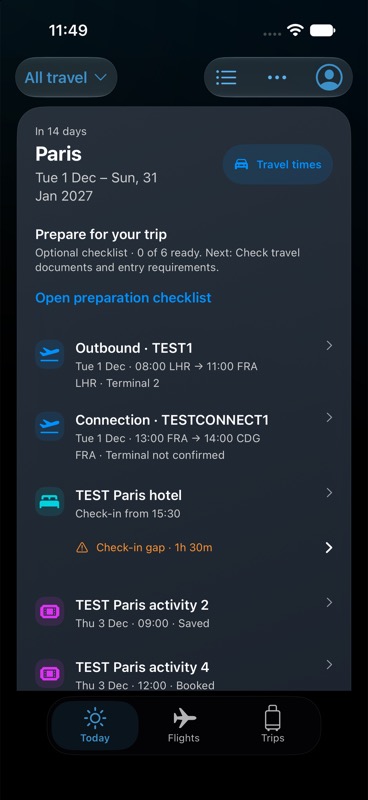
Synthetic example bookings; not a live travel feed.
Keep your next trip together.
Atlas is free for iPhone, with no subscription or in-app purchases. Up to 20 distinct new flights per account per UTC calendar month. Booking imports are temporarily unavailable.
Get Atlas on the App Store